

Source Code
Refer to the
powersync-swift repo on GitHubAPI Reference
Full API reference for the SDK
Example Projects
Gallery of example projects/demo apps built with PowerSync and Swift
Changelog
Changelog for the SDK
Earlier versions of the Swift SDK (up to v1.13) shipped a PowerSync Kotlin XCFramework under the hood and abstracted it behind Swift protocols.From v1.14 onward, the Kotlin dependency has been removed entirely. The SDK is now implemented natively in Swift, with the PowerSync sync protocol and SQLite extension handled by our Rust core.
SDK Features
- Real-time streaming of database changes: Changes made by one user are instantly streamed to all other users with access to that data. This keeps clients automatically in sync without manual polling or refresh logic.
- Direct access to a local SQLite database: Data is stored locally, so apps can read and write instantly without network calls. This enables offline support and faster user interactions.
- Asynchronous background execution: The SDK performs database operations in the background to avoid blocking the application’s main thread. This means that apps stay responsive, even during heavy data activity.
- Query subscriptions for live updates: The SDK supports query subscriptions that automatically push real-time updates to client applications as data changes, keeping your UI reactive and up to date.
- Automatic schema management: PowerSync syncs schemaless data and applies a client-defined schema using SQLite views. This architecture means that PowerSync SDKs can handle schema changes gracefully without requiring explicit migrations on the client-side.
Installation
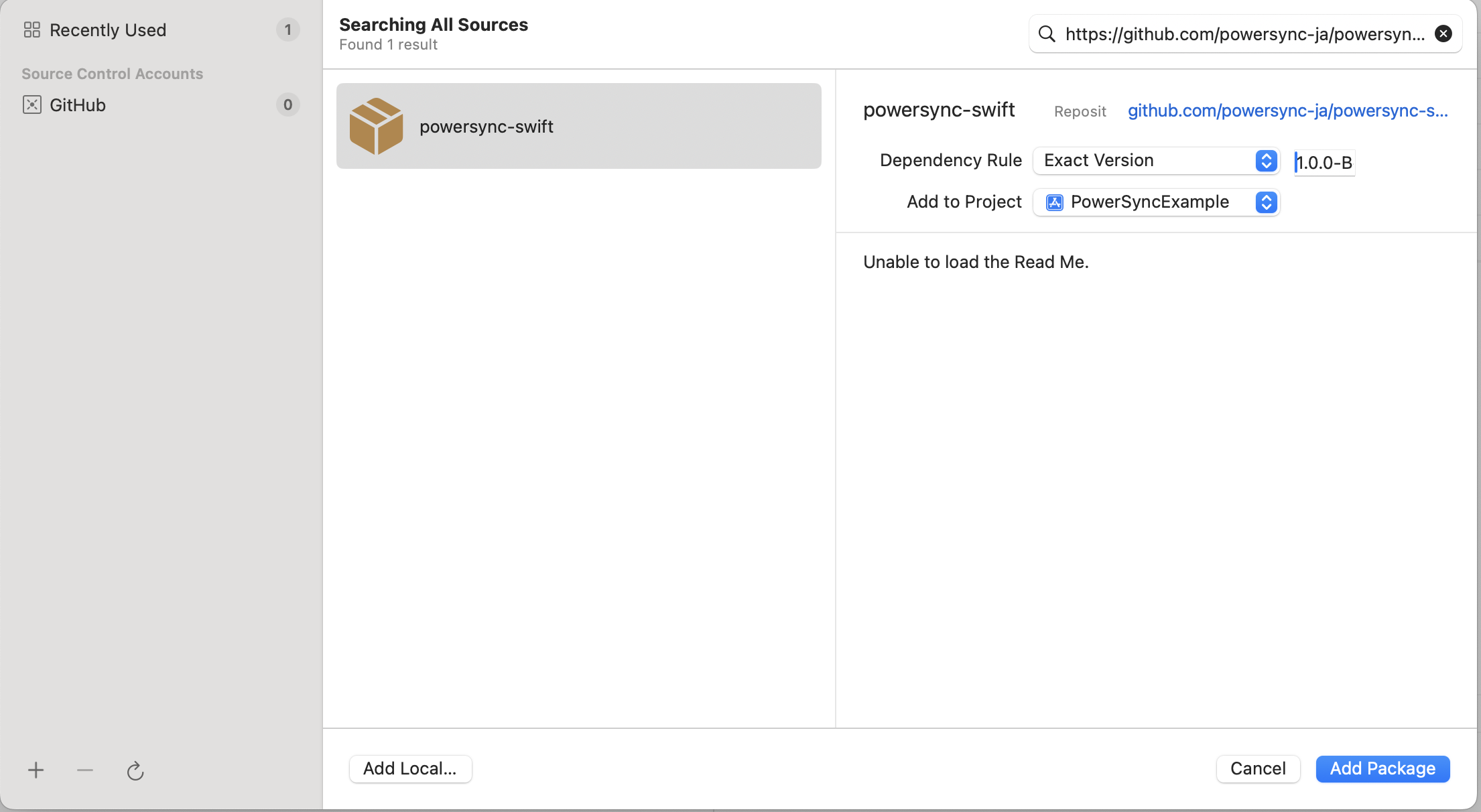
You can add the PowerSync Swift package to your project using eitherPackage.swift or Xcode:
- Package.swift
- Xcode
Getting Started
Prerequisites: To sync data between your client-side app and your backend source database, you must have completed the necessary setup for PowerSync, which includes connecting your source database to the PowerSync Service and deploying Sync Streams (or legacy Sync Rules) (steps 1-4 in the Setup Guide).1. Define the Client-Side Schema
This refers to the for the managed SQLite database exposed by the PowerSync Client SDKs, that your app can read from and write to. The schema is applied when the database is instantiated (as we’ll show in the next step) — . The types available aretext, integer and real. These should map directly to the values produced by your Sync Streams (or legacy Sync Rules). If a value doesn’t match, it is cast automatically. For details on how backend source database types are mapped to the SQLite types, see Types.
Example:
Note: No need to declare a primary key
id column, as PowerSync will automatically create this.2. Instantiate the PowerSync Database
Next, you need to instantiate the PowerSync database. PowerSync streams changes from your backend source database into the client-side SQLite database, based on your Sync Streams (or legacy Sync Rules). In your client-side app, you can read from and write to the local SQLite database, whether the user is online or offline. Example:3. Integrate with Your Backend
Create a connector to integrate with your backend. The PowerSync backend connector provides the connection between your application backend and the PowerSync managed database. It is used to:- Retrieve an auth token to connect to the PowerSync instance.
- Upload client-side writes to your backend API. Any writes that are made to the SQLite database are placed into an upload queue by the PowerSync Client SDK and automatically uploaded to your app backend (where you apply those changes to the backend source database) when the user is connected.
-
PowerSyncBackendConnectorProtocol.fetchCredentials- This method is automatically invoked by the PowerSync Client SDK to obtain authentication credentials. The SDK caches credentials internally and only calls this method when needed (e.g. on initial connection or when the token is near expiry). See WhenfetchCredentials()is Called for details, and Authentication Setup for instructions on how the credentials should be generated. -
PowerSyncBackendConnectorProtocol.uploadData- This method will be automatically invoked by the PowerSync Client SDK whenever it needs to upload client-side writes to your app’s backend API. You need to implement how those writes are processed and uploaded in this method. See WhenuploadData()is Called for details on triggers, throttling, and retry behavior, and Writing Client Changes for considerations on the app backend implementation.
Using PowerSync: CRUD functions
Once the PowerSync instance is configured you can start using the SQLite DB functions. The most commonly used CRUD functions to interact with your SQLite data are:- PowerSyncDatabase.get - get (SELECT) a single row from a table.
-
PowerSyncDatabase.getOptional - get (SELECT) a single row from a table and return
nullif not found. - PowerSyncDatabase.getAll - get (SELECT) a set of rows from a table.
- PowerSyncDatabase.watch - execute a read query every time source tables are modified.
- PowerSyncDatabase.execute - execute a write (INSERT/UPDATE/DELETE) query.
Fetching a Single Item (PowerSync.get / PowerSync.getOptional)
Theget method executes a read-only (SELECT) query and returns a single result. It throws an exception if no result is found. Use getOptional to return a single optional result (returns null if no result is found).
Querying Items (PowerSync.getAll)
ThegetAll method executes a read-only (SELECT) query and returns a set of rows.
Watching Queries (PowerSync.watch)
Thewatch method executes a read query whenever a change to a dependent table is made.
Mutations (PowerSync.execute)
Theexecute method executes a write query (INSERT, UPDATE, DELETE) and returns the results (if any).
Configure Logging
You can include your own Logger that must conform to the LoggerProtocol as shown here.DefaultLogger supports the following severity levels: .debug, .info, .warn, .error.
Custom HTTP Clients and Headers
PowerSync uses a streaming HTTP response to connect to the PowerSync service. By default, the Swift SDK usesURLSession.shared
to run HTTP requests.
You can provide a custom URLSession as a sync option. This can be used to add custom HTTP headers, for example:
URLSessionConfiguration.
Additional Usage Examples
For more usage examples including accessing connection status, monitoring sync progress, and waiting for initial sync, see the Usage Examples page.ORM Support
PowerSync officially supports the GRDB library for Swift. Additionally, Asier G. Morato contributed a Swift Data integration for PowerSync, allowing Swift Data models to be persisted and synced through a PowerSync database. Note that the integration is community-owned and not officially supported by PowerSync.Troubleshooting
See Troubleshooting for pointers to debug common issues.Supported Platforms
See Supported Platforms -> Swift SDK.Upgrading the SDK
Update the version number inPackage.swift or via Xcode Package Dependencies as documented in the installation instructions: Installation.